Which Blog Posts Generate Leads? A GA4 + CRM Method
Abidhusain Chidi10 min read
Open GA4 and it will tell you that most leads came from “Direct” or from the pricing page. Ask your sales lead, and they’ll name the comparison post three buyers mentioned on their first call. Both answers are partly right, and neither tells you which blog posts generate leads. GA4 counts events in sessions, while your CRM counts people. Until you join the two, you’re guessing which posts to write more of.
This guide shows how to find which blog posts generate leads, with a method a small B2B team can set up in an afternoon and repeat each month. First, record the form submit as a key event in GA4. Then store the page each lead came from in your CRM. Finally, put the two side by side, post by post. It works with any CRM that has a field for the page, and it doesn’t need an attribution tool.
We build LiftUp, a CRM with a GA4 view built in, and we learned one of these lessons on our own site. I’ll point out where that happened, and where LiftUp does part of this for you.
Why GA4 alone can’t tell you which blog posts generate leads
GA4 is good at sessions and events, but three things stop it from answering the question on its own.
- It counts events, not people. A key event fires each time someone submits a form. If one buyer sends the demo form twice, GA4 counts two, while your CRM shows one lead. GA4 also can’t tell a qualified buyer from a student asking for a free template.
- Its landing page is per session. Google defines the Landing page dimension as the page path of the first page view in a session. So if someone reads your post on Monday and comes back through the homepage on Thursday to book a demo, Thursday’s session gets the credit. The post gets none.
- Its attribution credits channels, not pages. GA4’s models decide whether organic search or email gets the key event. They don’t share credit between the posts a person read. Google also removed the first-click, linear, time-decay and position-based models in 2023, and the help pages now say they were “no longer available as of November 2023”. So older guides that tell you to pick a position-based model for your blog no longer apply.
A fourth gap is about missing data. Visitors who decline cookies, or who use an ad blocker, may never reach GA4 at all, though their form still reaches your CRM. That’s why the CRM count is the one to trust for leads, and GA4 is the one to trust for traffic.
The method: two numbers for blog posts that generate leads
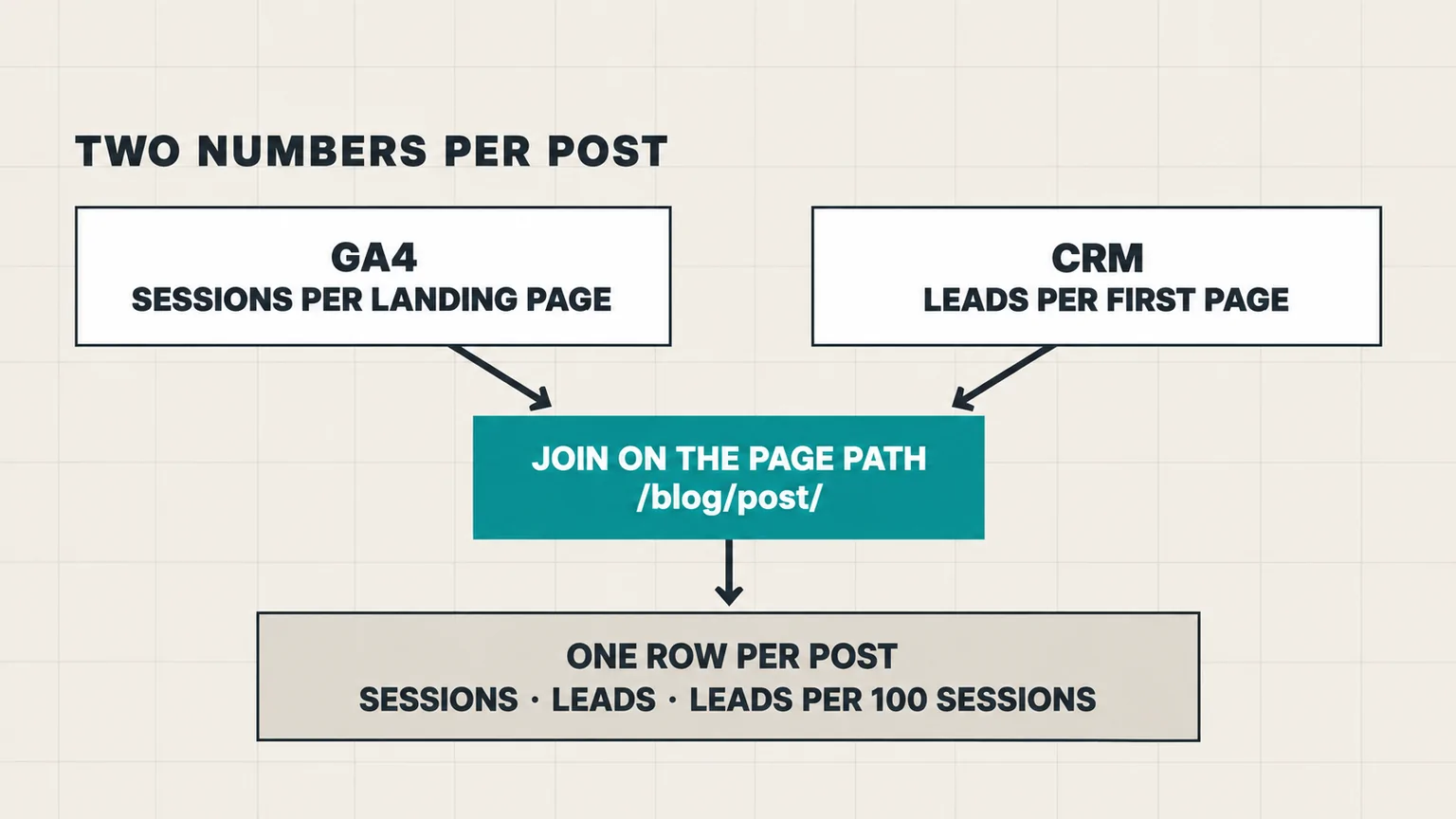
For every post, you want two numbers from two places:
- Sessions that started on the post, from GA4’s Landing page report.
- Leads whose first page was the post, from your CRM, counted as unique people.
Divide the second by the first and you have a lead rate per post. The two systems only line up if they describe the page the same way, so the rest of this guide is mostly about making that happen.
Step 1: Make the form submit a key event
In March 2024, Google renamed GA4’s conversions to “key events”. A “conversion” now means a key event you send to Google Ads. So in GA4 itself, you’re looking for key events.
Use the recommended generate_lead event, which Google describes as measuring “when a lead has been generated (for example, through a form)”. Fire it from your own code once the form has been accepted, not when the button is clicked, so failed submissions don’t count:
// After your server confirms the lead was saved
gtag('event', 'generate_lead', {
  form_name: 'demo_request',
  value: 1,
  currency: 'USD'
});
Then mark it as a key event. In Admin, under Data display, click Events and click the star next to generate_lead. A standard property allows up to 30 key events, and the change only counts from the day you make it. It doesn’t rewrite past data, so start the clock now.
Two cautions apply here. First, never send the lead’s email or phone number to GA4, as an event parameter or in the page URL. Google’s policy forbids sending data it could recognise as personal, and that includes “the URL path and parameters”. Second, if you rely on enhanced measurement’s built-in form_submit instead, its form name and ID only show in reports after you register them as custom dimensions.
Step 2: Store the page in your CRM
This is the step most teams skip, and it decides whether the method works. Every lead needs two hidden fields:
- First page: the first page this browser ever saw on your site, set once and never overwritten. This is what fixes GA4’s per-session view.
- Form page: the page where the form was actually sent.
A few lines of script on every page can fill both:
<input type="hidden" name="first_page">
<input type="hidden" name="form_page">
<script>
  (function () {
    var path = location.pathname;
    var first = path;
    try {
      first = localStorage.getItem('first_page') || path;
      localStorage.setItem('first_page', first);
    } catch (e) {}
    document.querySelectorAll('input[name="first_page"]').forEach(function (el) { el.value = first; });
    document.querySelectorAll('input[name="form_page"]').forEach(function (el) { el.value = path; });
  })();
</script>
Store paths such as /blog/crm-data-cleanup-checklist/, not full URLs with the domain and tracking tags. GA4’s Landing page is a path, so a field holding https://www.example.com/blog/post/?utm_source=x will never match it. We hit this on our own site: our forms send the full URL, so those leads don’t match their GA4 page rows until the domain is stripped off.
Two notes before you ship it. In the UK and EU, saving the first page in the browser counts as storing data on the visitor’s device, so check that your cookie banner covers it. And if your forms post through your own server, as in our Next.js contact form to CRM guide, pass both fields through to the CRM’s API with the rest of the lead.
Many CRMs keep a version of this already. HubSpot, for example, sets a “First page seen” property on each contact automatically, though it only links page views to a contact once their browser cookie is tied to the record, usually after a form fill.
Step 3: Pull which blog posts generate sessions in GA4
In GA4, go to Reports, then Engagement, then Landing page. Filter the table to pages containing /blog/, set the date range to the last 90 days, and keep three columns: Sessions, Key events and Session key event rate. Export it as a CSV.
Watch for three things in that export:
- “(not set)” rows. These appear when a session has no page view, often because of consent settings. Leave them out of the per-post comparison, but note how large they are.
- An “(other)” row. GA4 groups rows together when a table has too many values, and Google notes that filters and secondary dimensions make it more likely. A small blog rarely hits it, but if you see it, export the standard report without extra dimensions.
- The retention limit. Explorations keep detailed data for 2 months by default, or 14 if you change the setting in Admin. Standard reports aren’t affected, but export the table monthly anyway so you keep your own history.
If you’ve linked Search Console to GA4, its Google organic search traffic report adds clicks and impressions per landing page. Google only lets you break that data down by landing page, device and country, so treat it as a separate view rather than part of the join.
Step 4: Join the two numbers per post
Now export your CRM leads for the same 90 days with the first-page field, and count unique leads per post. Remove duplicates and spam first, using the same rules as fixes 9 and 10 of our CRM data cleanup checklist, or the counts will flatter your busiest forms.
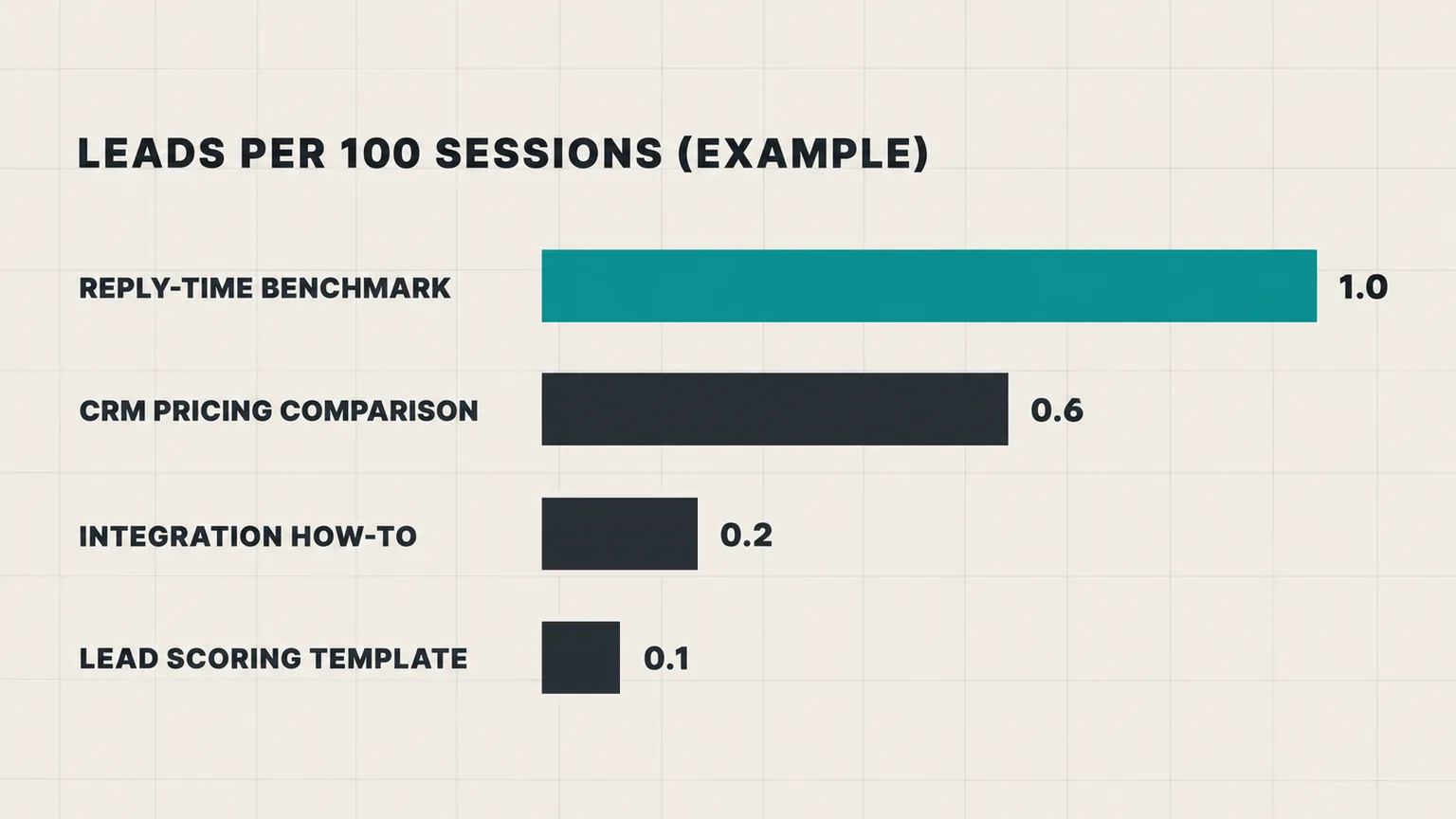
Then join the two exports on the page path in a spreadsheet. Here’s an example for a four-person team over 90 days. The numbers are made up to show the method:
| Post | Sessions (GA4) | Key events (GA4) | Leads (CRM) | Leads per 100 sessions |
|---|---|---|---|---|
| CRM pricing comparison | 1,840 | 9 | 11 | 0.6 |
| Lead scoring template | 3,200 | 4 | 3 | 0.1 |
| Reply-time benchmark | 620 | 5 | 6 | 1.0 |
| Integration how-to | 410 | 1 | 1 | 0.2 |
Two things stand out. The table shows which blog posts generate leads, not just visits: the template gets the most traffic but almost no leads, while the benchmark gets a third of that traffic and the best lead rate. Also, the CRM shows more leads than GA4 shows key events for two posts. That’s normal: some buyers decline cookies or block GA4, but their form still arrives.
Reading the numbers without fooling yourself
Small teams get few leads, so knowing which blog posts generate leads takes some patience.
Don’t rank blog posts on two leads
With 5 to 30 leads a month, one buyer moves a post up or down the table. So use a rolling 90-day window, and only compare posts with at least 300 sessions. Treat anything with one or two leads as “too early to say” rather than as a winner. Then check the table monthly, but only change your plans each quarter.
Separate the post that started it from the post that closed it
Your two CRM fields give you two views. A post that shows up as many leads’ first page is starting journeys, so write more like it. A post that shows up as the form page is closing them, so give it a stronger call to action. Some posts do both, and they’re the ones to update first.
Ask buyers, too
Add an optional “Where did you first hear of us?” question to your demo form. It catches what neither system can, such as a post a colleague forwarded or a talk someone watched. It won’t replace the numbers, but when the field and the first page agree, you can be fairly sure.
Where LiftUp shows which blog posts generate leads
LiftUp stores the page on every lead as a “Page” field. You can send it with the lead API as source_page. Our embedded forms record it automatically, but most browsers only pass your site’s address into an embedded form, not the post’s, so for numbers per post, send the page through the API. The field is included in the lead export on every plan.
On Growth, Insights then joins it with your GA4 data in a table called “Landing pages: traffic against leads”, showing sessions, leads and lead rate per page. Starter has a simpler view, “Pages that turn visitors into leads”. Both match pages by path and only ignore a trailing slash, so send /blog/your-post/ rather than the full URL. Our Insights feature page shows the rest of the reports.
Who LiftUp isn’t for: teams that need revenue credited to each post, multi-touch journeys or UTM campaign reports. LiftUp stores one page per lead, which is the page the form came from, and it doesn’t read UTM tags. For those reports, a marketing suite or a dedicated attribution tool will serve you better.
Next step
This week, add the generate_lead key event and the two hidden fields, then leave them running for a month. In your first monthly review, export both sides, join them by path and note which blog posts generate leads and which only bring traffic. If you’d like to see that table built from your own GA4 data, book a 30-minute LiftUp demo.
Frequently asked questions
How do I see which blog posts generate leads in GA4?
Mark your form event, ideally generate_lead, as a key event, then open Reports, Engagement, Landing page and filter to your blog's paths. You'll see sessions, key events and the session key event rate per post. For leads rather than events, compare that table with the first page stored on each lead in your CRM.
What is the difference between key events and conversions in GA4?
Since March 2024, GA4 calls the important actions you track on your site key events. A conversion now means a key event that you also use to measure and bid on Google Ads campaigns. For blog reporting inside GA4, you'll work with key events.
Why don't GA4 key events match the leads in my CRM?
GA4 counts each submission, so one person sending a form twice counts twice, while the CRM shows one lead. In the other direction, visitors who decline cookies or block GA4 still reach your CRM. Spam can inflate either count, so clean the CRM data before you compare.
Should a lead be credited to the first blog post they read or the last?
Keep both. Store the first page the browser ever saw and the page where the form was sent. Posts that often appear as the first page start journeys, while posts that appear as the form page close them, and each needs a different fix.
How many leads do I need before comparing blog posts?
There's no official number, but with only a few leads a month, one buyer can swing the table. A rolling 90-day window, a minimum of a few hundred sessions per post and treating one or two leads as too early to call will keep you from chasing noise.
Can I send the lead's email address to GA4?
No. Google's policies forbid sending data it could use to identify a person, such as an email address or phone number, including in page URLs. Keep personal details in your CRM and join the two systems by page path instead.
Does LiftUp show revenue per blog post?
No. LiftUp stores the page each lead came from, and on Growth, Insights compares sessions and leads per page. It doesn't credit deals or revenue to individual posts, and it doesn't read UTM tags.

Abidhusain Chidi
Founder & CEO, QalbIT Infotech
Abidhusain Chidi is the founder and CEO of QalbIT Infotech, a software agency in Ahmedabad building web and SaaS products since 2018. He's also CTO at Seekly, an Australian revenue intelligence platform, and is building LiftUp. He writes about CRM, SaaS operations, and shipping multiple products as a small team.
See it live
Watch LiftUp run your whole growth stack
One console for CRM, content, AI editorial and insights — book a 30-minute walkthrough tailored to your team.
Book a demo